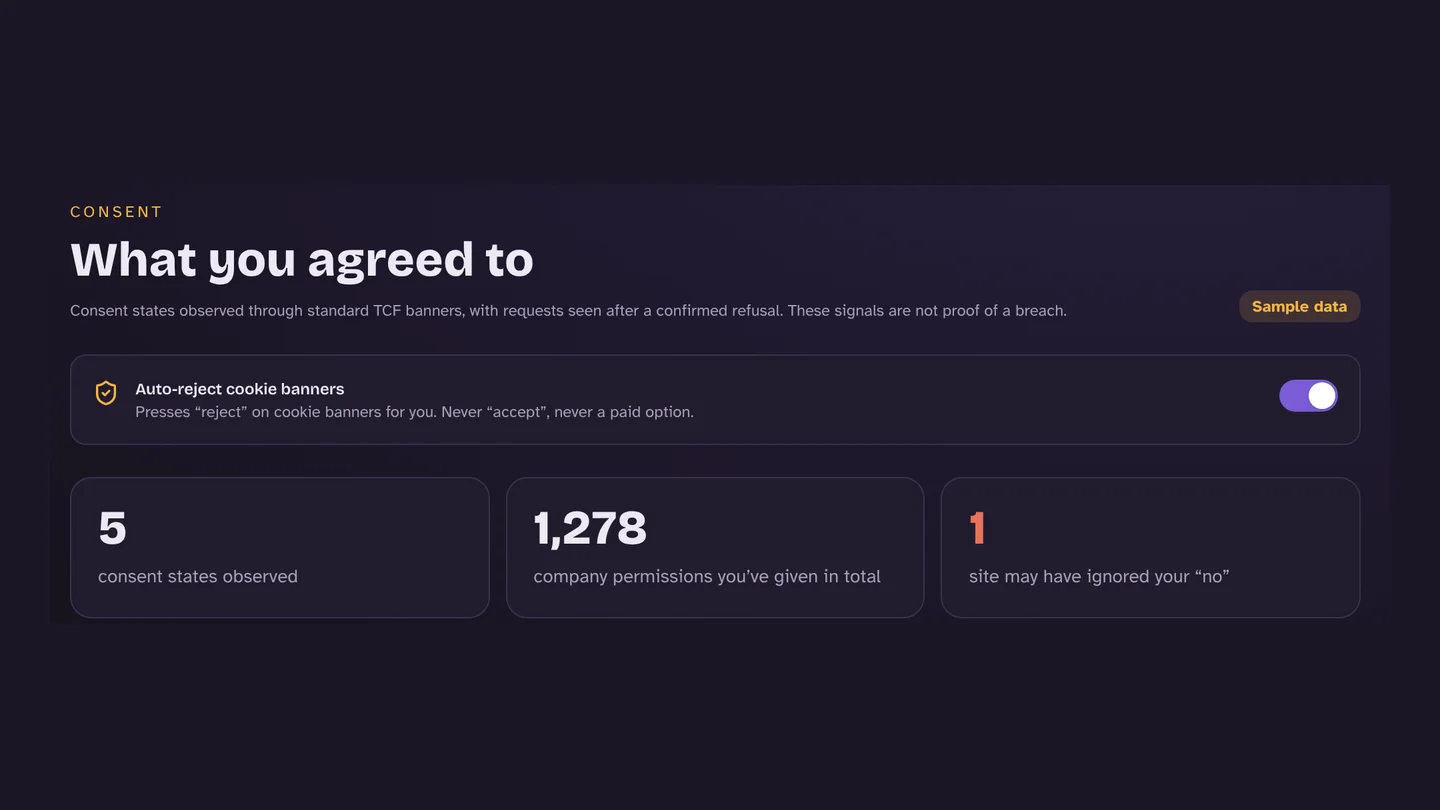
Cookie banners ask the same question on every site, and the “Accept all” button is almost always the easiest to hit. If you want to say no every time without thinking about it, here are your options in Chrome, what each one really does, and how to set up automatic rejection.
What Chrome can and can’t do on its own
Chrome lets you block third-party cookies (Settings → Privacy and security → Third-party cookies). That’s worth doing: it stops many cross-site cookies from being set. But it doesn’t answer the banner. The site still asks, and many trackers work without third-party cookies, using first-party cookies, local storage or device fingerprinting. To refuse on the banner itself, you need an extension.
Your options, compared
| Approach | What happens to the banner | Does it refuse tracking? |
|---|---|---|
| Click “Reject all” yourself | You answer it | Yes, if the site respects it |
| Banner hiders (e.g. “I still don’t care about cookies”) | Hidden; if the site needs an answer, the extension accepts for you | Not reliably. Hiding records no refusal, and accepting gives consent |
| Ad-blocker “annoyance” filter lists | Hidden from view | No. Nothing is refused, the banner is just not shown |
| Consent-O-Matic (Aarhus University) | Filled in using preferences you set once | Yes, on the consent tools it supports |
| Browser Monster auto-reject | Presses the banner’s own reject button | Yes. Never presses “accept” or a paid option |
The difference between hiding and rejecting matters. A hidden banner is a banner you never answered. Depending on the site, that can mean tracking runs anyway, or that the site assumes you agreed. The listing for “I still don’t care about cookies” says that when a site needs cookies to work, it will accept the cookie policy for you. That’s convenient, but it isn’t a refusal.
How to set up auto-reject in Browser Monster
- Install Browser Monster and pin the monster to your Chrome toolbar.
- Click the monster, open the Consent tab and switch on Auto-reject cookie banners. (You’ll also find the switch at the top of the Consent section in the dashboard.)
- Reload the page you’re on. From now on, every page you open is checked for a cookie banner.
- To leave one site alone, open the popup on that site and choose Don’t auto-reject on this site.

How it works
- It looks where banners live. Many banners load inside a separate frame from the consent company (OneTrust, Sourcepoint, Didomi and others). Auto-reject runs in those frames as well as the page.
- Known consent tools first. It recognises the reject buttons of the most common consent platforms, then looks for buttons labelled “Reject all”, “Decline”, “Necessary cookies only” and similar, in several languages, but only inside something that is clearly a cookie banner.
- One press, first screen only. It presses the reject button once, the way you would. It doesn’t dig through settings menus or switch off “legitimate interest” toggles one by one.
- Never “accept”, never “pay”. If a banner only offers “accept” or “reject and pay”, it leaves the choice to you and tells you why in the popup.
- Everything stays on your device. Your setting, your exceptions and a count of banners rejected are stored in your browser. Nothing is sent to us.
When we tested it on 24 October 2026, it rejected the banners on Stack Overflow, BBC, Reddit, Booking.com, IKEA, Le Monde and Cookiebot’s own site. It left The Guardian, Der Spiegel and The Independent alone, because their only alternative to accepting was a paid one. Read why some sites charge you to say no.
It won’t catch every banner
Rejecting is step one. Checking is step two.
Pressing “reject” only works if the site honours it. When we clicked reject on 94 popular UK websites, 44 still loaded tracking companies afterwards. Browser Monster flags those cases on the sites you visit, under “tracked after you said no”. See the full findings in Do websites keep tracking you after you click “Reject all”?, or look up any site on Check a site.
Say no once, everywhere
Turn on auto-reject in Browser Monster and it presses “reject” for you on every site, then shows you who loaded anyway. Free, and it never sends your browsing anywhere.
Sources
- I still don’t care about cookies: Chrome Web Store listing · Chrome Web Store
- Consent-O-Matic: Chrome Web Store listing · Chrome Web Store (CAVI, Aarhus University)
- Browser Monster Index: live data and dashboard · Browser Monster, October 2026
- Browser Monster privacy policy (auto-reject and permissions) · Browser Monster