What DNS is, and who can see it
Computers find websites by number (an IP address), not by name. DNS, the Domain Name System, is the internet’s phone book: when you type a web address or tap a link, your device asks a DNS resolver “where is this site?” and gets the number back. It happens for every site, and for every tracker, image and script a page loads.
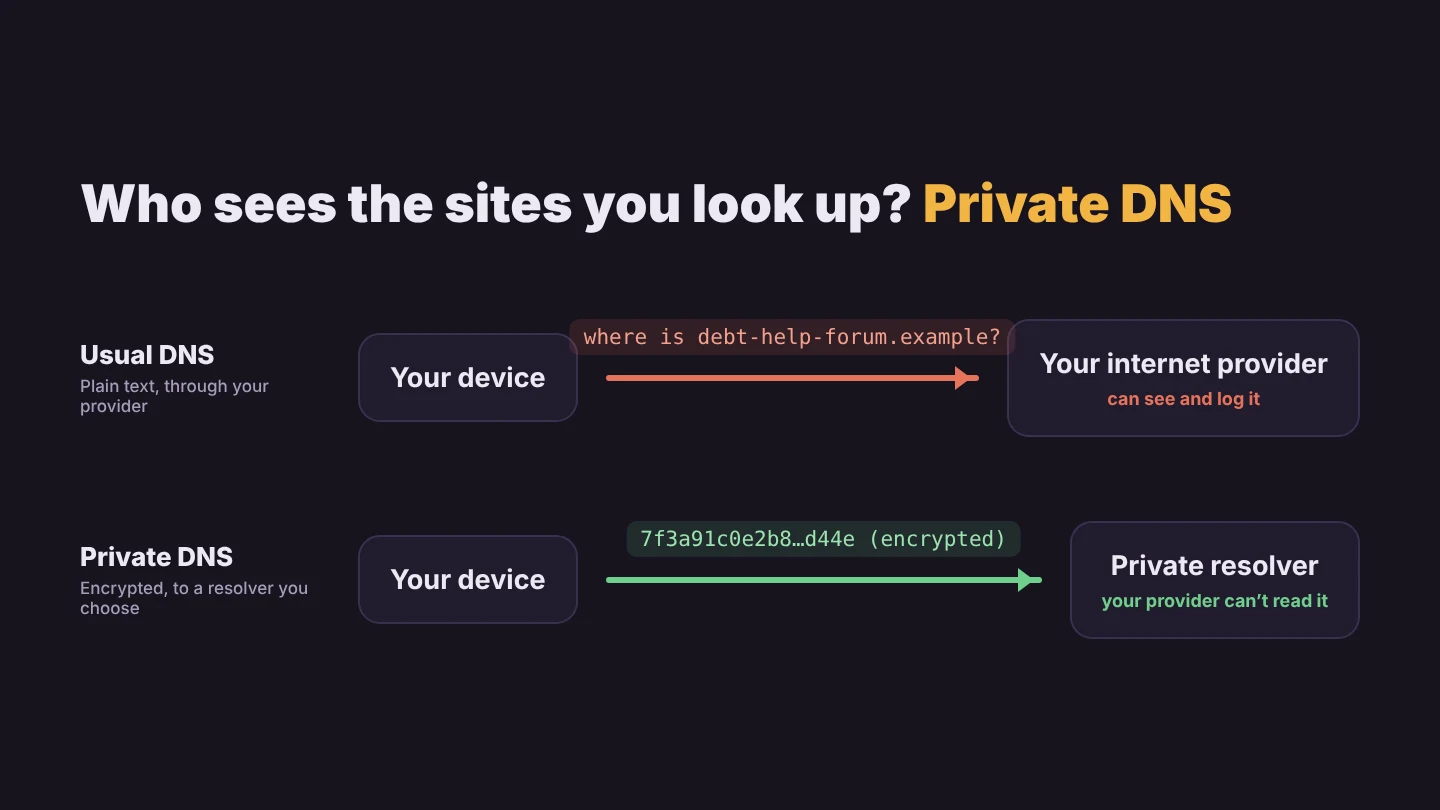
Unless you’ve changed it, that resolver is run by your internet or mobile provider, and the questions travel in plain text. That means:
- Your provider can see every site you look up, including sensitive ones (health, debt, dating, religion), and can keep a log.
- Anyone on the same network, such as public Wi-Fi at a café, hotel or airport, can see them too.
- Some networks redirect or filter lookups, for example to show their own search page when a site doesn’t exist.
Private DNS fixes this by wrapping the lookup in encryption (DNS over HTTPS or DNS over TLS) and sending it to a resolver you picked. The question “where is this site?” is no longer readable along the way.
Which private DNS provider to choose
All three big free providers support encrypted DNS and say they don’t sell your data. They differ in how much they keep, and whether they block anything.
| Provider | Android hostname | What it keeps | Blocks |
|---|---|---|---|
| Quad9 Swiss nonprofit | dns.quad9.net | Says it doesn’t store your IP address. Keeps anonymous counts of which domains are looked up. | Malware, phishing and botnet sites |
| Cloudflare 1.1.1.1 | one.one.one.one | Logs deleted within 25 hours; doesn’t store your IP address except a tiny random sample for debugging. Independently audited. | Nothing (family versions available) |
| Google Public DNS | dns.google | Keeps full IP addresses for about 24 to 48 hours, then permanent logs without them. Says it isn’t used for ads. | Nothing |
| NextDNS, AdGuard DNS | Your own, from their site | Depends on your settings; free tiers have monthly limits. | Ads and trackers, configurable lists |
Mullvad DNS users: it’s closing
Mullvad is shutting down its free public encrypted DNS on 2 November 2026 and sponsoring Quad9 instead. If you set dns.mullvad.net or one of its variants, switch to dns.quad9.net (or another provider) before then, or your device may stop resolving sites.
How to turn on secure DNS in Chrome
Chrome on a computer
- Open Chrome and go to Settings → Privacy and security → Security.
- Find Use secure DNS and make sure it’s on.
- Choose Select DNS provider and pick one from the list (Quad9, Cloudflare, Google and others), or add a custom one.
Chrome on Android
- Tap ⋮ → Settings → Privacy and security.
- Tap Use secure DNS (under Security on newer versions).
- Choose a provider instead of “Use current service provider”.
Chrome’s default “automatic” mode only encrypts when your current provider supports it, and quietly falls back to unencrypted lookups when it doesn’t. Picking a provider yourself means it doesn’t fall back. On work or school devices the setting may be locked, and it’s unavailable with some parental controls.
This only covers Chrome. Other apps on your device still use the system DNS, so on Android the system-wide setting below is better.
How to set Private DNS on Android (whole phone)
Android 9 and later has a built-in Private DNS switch that covers every app, not just your browser.
- Open Settings → Network & internet (on Samsung: Connections → More connection settings).
- Tap Private DNS.
- Choose Private DNS provider hostname and enter
dns.quad9.net(orone.one.one.one, ordns.google). - Tap Save.
Type the hostname exactly. A typo means sites stop loading; if that happens, set Private DNS back to Automatic. If you use a VPN, the VPN’s own DNS takes over while it’s connected.
How to use private DNS on iPhone, iPad and Mac
Apple has no simple on/off switch. Safari’s iCloud Private Relay (part of paid iCloud+) encrypts DNS for Safari. For the whole device you have two options:
- The provider’s app. Cloudflare’s free “1.1.1.1” app turns encrypted DNS on with one switch.
- A configuration profile. Download the encrypted DNS profile from the provider’s website (Quad9 and others publish one), then open Settings → Profile Downloaded → Install and enter your passcode. It then shows under Settings → General → VPN & Device Management, where you can remove it at any time.
Only install profiles from the provider’s own website: a profile can control where all your lookups go.
How to set encrypted DNS on Windows 11
- Open Settings → Network & internet, then Wi-Fi (or Ethernet) and your connection’s properties.
- Next to DNS server assignment, click Edit and choose Manual.
- Turn on IPv4 and enter a preferred and alternate server: Quad9
9.9.9.9and149.112.112.112, Cloudflare1.1.1.1and1.0.0.1, or Google8.8.8.8and8.8.4.4. - Set DNS over HTTPS to On (automatic template) and turn off fallback to plaintext.
- Save. Your connection’s DNS servers should now show as Encrypted.
How to turn on DNS over HTTPS in Firefox
- Go to Settings → Privacy & Security and scroll to DNS over HTTPS.
- Choose Increased Protection (falls back if secure DNS fails) or Max Protection (never falls back), and pick a provider.
- Use Manage Exceptions for any site that needs your normal DNS, such as a work intranet.
How to check it’s working
- Quad9: visit on.quad9.net. It says “Yes” if you’re using Quad9.
- Cloudflare: visit one.one.one.one/help and check “Using DNS over HTTPS (DoH)” or “DNS over TLS (DoT)”.
- Windows: the connection’s properties page shows “(Encrypted)” next to each DNS server.
What private DNS doesn’t do
Private DNS is worth turning on, but it closes one gap, not all of them.
- Your provider still sees where you connect. It can still see the IP addresses of the servers you reach and, often, the site name during the secure connection set-up. It just loses the easy, complete log of lookups.
- The resolver sees your lookups instead. You’re moving trust from your internet provider to the DNS provider, which is why its privacy policy matters.
- It doesn’t touch on-page tracking. Once a site loads, its cookies, ad scripts and fingerprinting run as before. On the popular UK websites in the Browser Monster Index, an average of 12.7 tracking companies loaded per site, and more than a third ran fingerprinting scripts.
- It isn’t a VPN. Websites still see your real IP address and rough location.
To deal with the tracking that happens on the page, reject cookie banners automatically, clear the tracking cookies you already have, and run the browser fingerprint test to see what sites can read without cookies.
For the technically minded: run your own
If you’d rather not send your lookups to any company, you can run a resolver at home. Pi-hole is the long-standing option: a small server (often a Raspberry Pi) that answers DNS for your whole network and blocks ad and tracker domains. Numa is a newer open-source resolver written in Rust that runs on your own computer, with encrypted upstream lookups and ad blocking built in. It’s early-stage software, so expect rough edges.
Both need some setup and upkeep. For most people, the two-minute provider switch above gets most of the benefit.
Private DNS hides your lookups. Browser Monster shows what’s on the page.
See every tracking company on the sites you visit, reject cookie banners automatically, and delete just the tracking cookies. Free, and everything stays on your device.
Sources
- Use secure DNS in Chrome · Google Chrome Help
- Quad9 setup guides and privacy policy · Quad9
- 1.1.1.1 public DNS resolver privacy commitments · Cloudflare
- Google Public DNS privacy · Google
- Firefox DNS over HTTPS · Mozilla Support
- Shutting down our public encrypted DNS servers and sponsoring Quad9 instead · Mullvad, 3 September 2026
- Numa: local DNS resolver · GitHub
- Browser Monster Index · Browser Monster, October 2026